
A keyboard is one of the most important tools we use with computers every day, but have you ever wondered what makes it work? Just like a chair has different parts that give it structure, a keyboard also has several key components that each play an important role. From the keys you press to the spacebar and function keys, every part has its own purpose. In this article, we’ll take a closer look at the main parts of a keyboard and what they do, so you can understand it better.
List Of Keyboard Parts With Names
- Escape (Esc)
- Function Keys (F1–F12)
- Enter
- Backspace
- Delete
- Print Screen
- Scroll Lock
- Indicator Lights (Num Lock, Caps Lock, Scroll Lock)
- Caps Lock
- Shift
- Control (Ctrl)
- Windows Key
- Alt Key
- Space Bar
- Menu Key
- Arrow Keys
- Insert
- Home
- End
- Page Up
- Page Down
- Number Pad (Numeric Keypad)
- Keycaps
- Switches
- Top Case
- Plate
- Gaskets
- Sound Absorbing Foam
- Case Foam
- PCB (Printed Circuit Board)
- Bottom Case
- Badge
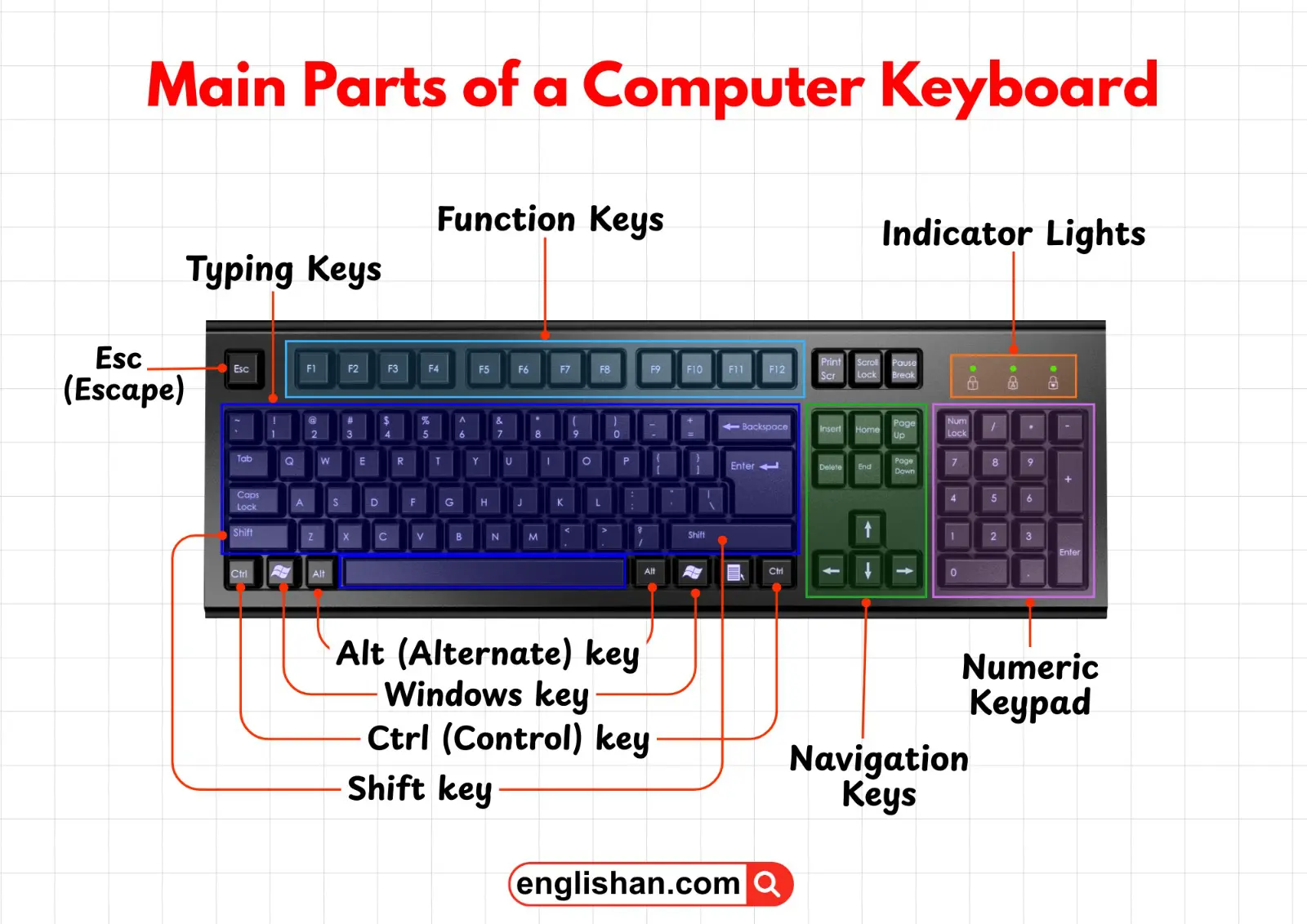
Parts of a Keyboard Diagram With Names
A keyboard is a complete input device made up of several essential components that work together to let you type, navigate, and control your computer. The keys allow you to enter letters, numbers, and symbols, while the function keys provide shortcuts for quick commands. The spacebar, enter key, and shift keys help in formatting and controlling text efficiently. Special keys like Ctrl, Alt, and Esc give you extra control over software functions. The keyboard frame and key switches ensure a comfortable typing experience, while indicators like Caps Lock and Num Lock keep you informed about the keyboard’s status. Every part, from the keys to the casing, plays a crucial role in smooth operation, accuracy, and an efficient typing experience.
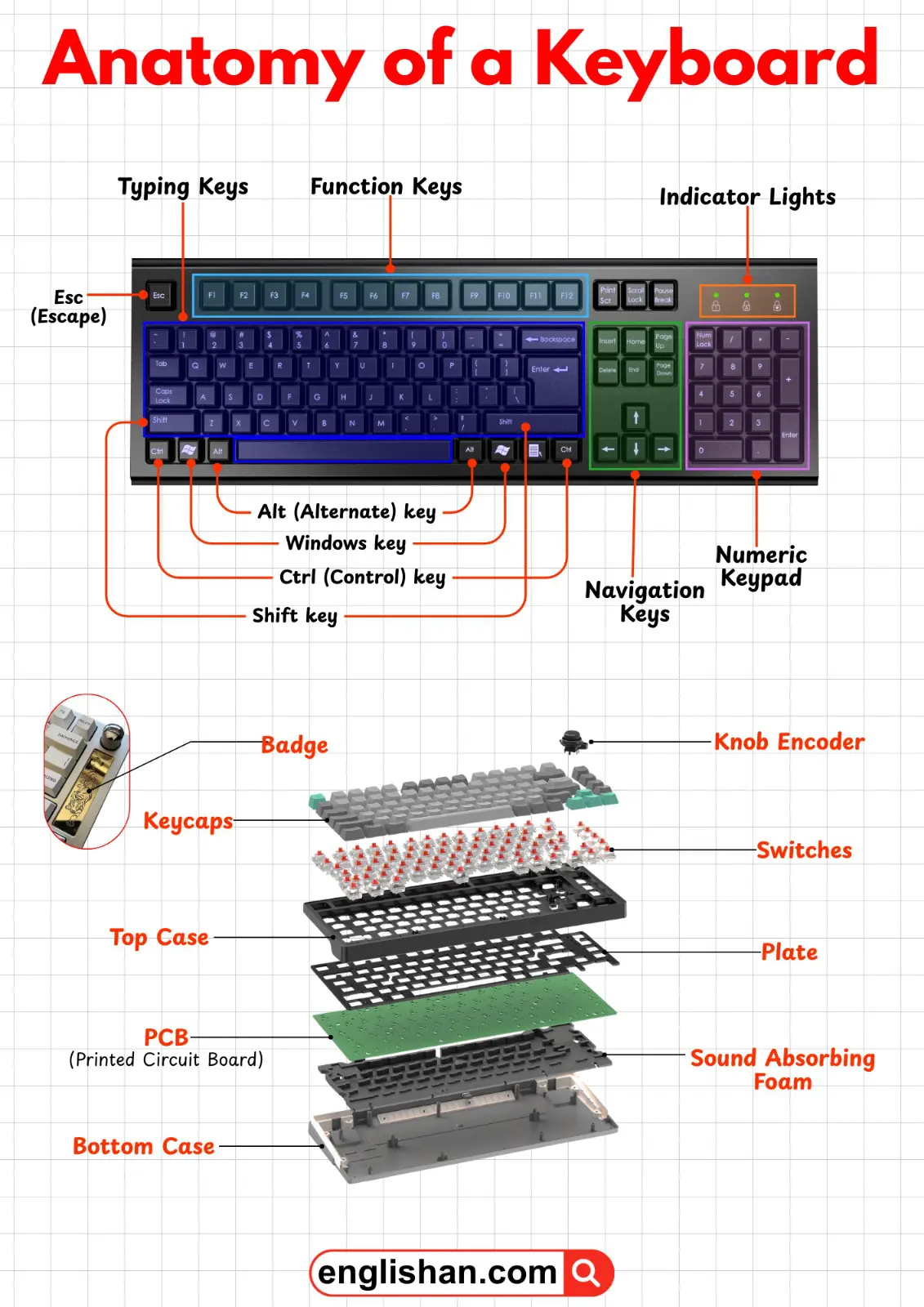
Control & System Keys
Control and system keys are special keys on a keyboard designed to help you perform commands, shortcuts, and system-level tasks rather than typing letters or numbers. They make working on a computer faster, easier, and more efficient.
Escape (Esc)
The Esc key is like an “exit” button for your computer tasks. It lets you cancel ongoing actions or close windows. For example, if a pop-up appears, pressing Esc will close it. If you are watching a video in full-screen mode, Esc will return you to the normal screen. It’s a handy key for stopping or backing out of something quickly.
Control (Ctrl)
The Ctrl key doesn’t do much on its own but works in combination with other keys to create shortcuts. For instance, pressing Ctrl + C copies selected text or files, and Ctrl + V pastes them. These shortcuts save time and make everyday tasks like editing documents or managing files much faster.
Alt
The Alt key is another combination key that gives you quick access to commands and menus. A common example is Alt + Tab, which lets you switch between open windows instantly without using the mouse. Alt is widely used in software programs to navigate menus and perform hidden functions.
Windows Key
Found on Windows keyboards, this key opens the Start menu with a single press. Combined with other keys, it can execute system shortcuts, like Windows + E to open File Explorer or Windows + L to lock your screen. It’s a key that connects you directly to your system’s main functions.
Menu Key
The Menu key acts as a keyboard shortcut for the right-click menu, which normally appears when you right-click with a mouse. By pressing this key, you can quickly access context-specific options for files, folders, or text without reaching for your mouse.

Function Keys (F1–F12)
Located at the top row of the keyboard. Each key performs special functions depending on the software:
- F1 – Help menu
- F2 – Rename
- F5 – Refresh
- F11 – Full screen
(Functions can change depending on the program.)
They are very useful in professional and office work.
Typing Keys
Typing keys are the main keys on a keyboard that allow you to write, enter data, and perform everyday typing tasks. They include letters, numbers, and essential function keys for text control.
Alphabet Keys (A–Z)
These keys are used to type letters and form words. They are the core of any keyboard, letting you write documents, messages, or any text-based input.
Number Keys (0–9)
Located on the top row, these keys let you type numbers quickly. They are essential for entering data, calculations, passwords, or numeric codes.
Space Bar
The space bar creates a space between words while typing. It is the longest key on the keyboard, making it easy to press with your thumb.
Enter
The Enter key moves the cursor to the next line in a document or confirms commands in programs. It is also used to submit forms or send messages.
Backspace
Backspace deletes characters to the left of the cursor. It’s useful for correcting mistakes quickly while typing.
Caps Lock
When activated, Caps Lock makes all letters uppercase until it is turned off. It’s helpful for typing headings or emphasizing text.
Shift
The Shift key is used to type capital letters when held down. It also allows access to special symbols like @, #, $, and % found on the number row.
Navigation Keys
Navigation keys are used to move the cursor and navigate through documents, text, or web pages without relying on a mouse. They make editing and browsing much easier and more efficient.
Arrow Keys
The arrow keys let you move the cursor in different directions—up, down, left, or right—one step at a time. They are useful for precise movement in documents, spreadsheets, or text editing.
Insert
The Insert key switches between two typing modes: insert mode, where new text is added at the cursor without deleting existing text, and overwrite mode, where new text replaces the existing text as you type.
Delete
The Delete key removes characters to the right of the cursor or deletes selected items. It helps in quickly correcting mistakes or removing unwanted text.
Home
The Home key moves the cursor instantly to the beginning of the current line or the top of a document, saving time when navigating long texts.
End
The End key moves the cursor to the end of the current line or the bottom of a document. It’s useful for quickly reaching the end of sentences or paragraphs.
Page Up
Page Up scrolls the view one page up at a time. It allows you to move quickly through long documents without repeatedly pressing the arrow keys.
Page Down
Page Down scrolls the view one page down at a time. Like Page Up, it helps navigate through content efficiently without using a mouse.
Numeric Keypad
The numeric keypad is a set of keys usually found on the right side of full-size keyboards. It is designed for quick and efficient number entry, making tasks like calculations, data entry, and accounting much easier.
Number Pad (0–9)
The number pad contains the digits 0 to 9, arranged like a calculator. It allows for fast typing of numbers, which is especially helpful when working with spreadsheets, accounting software, or any task that requires frequent numeric input.
Num Lock
The Num Lock key controls the functionality of the numeric keypad. When Num Lock is on, the keys type numbers. When it is off, the same keys act as navigation keys, such as arrows or Home, End, Page Up, and Page Down. This gives you flexibility depending on your task.
Indicator Lights
Indicator lights are small LED lights on a keyboard that show the current status of certain keys. They help you know at a glance which functions are active, making typing and navigation easier.
Num Lock Light
The Num Lock light indicates whether the numeric keypad on the right side of the keyboard is active. When it’s on, you can use the number keys to enter numbers. When it’s off, those keys may function as arrow keys or perform other functions.
Caps Lock Light
The Caps Lock light shows whether capital letters are turned on. When it’s on, every letter you type will appear in uppercase until you turn it off, helping you avoid typing errors.
Scroll Lock Light
The Scroll Lock light is less commonly used today, but it shows whether the scroll function is active. In some programs, it changes the way the arrow keys behave, like scrolling through a document instead of moving the cursor.
Utility Keys
Utility keys are special keys that perform specific tasks, often related to the system or display. They are not used for typing but help with managing your screen and system functions.
Print Screen (PrtSc)
The Print Screen key captures an image of everything currently displayed on your screen. You can then paste it into programs like Paint, Word, or an image editor. It’s a quick way to save or share what’s on your screen without needing extra software.
Scroll Lock (ScrLk)
Scroll Lock was originally designed to control how the arrow keys scroll through text or spreadsheets. Today, it’s rarely used, but in some programs, it can still change scrolling behavior or be part of special shortcuts.
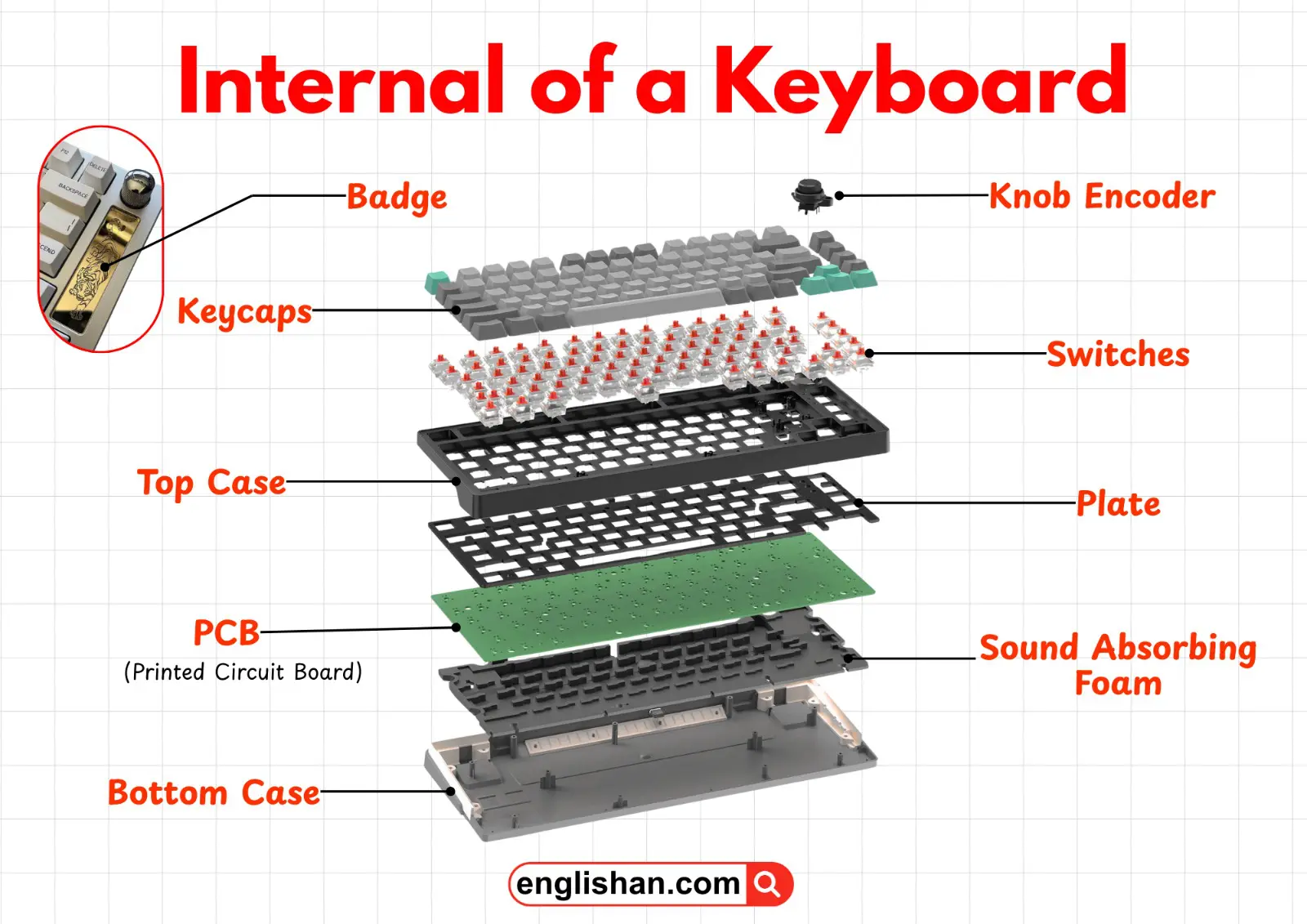
Internal Mechanical Keyboard Parts
Now, let’s understand what’s inside a mechanical keyboard:
Outer Structure
- Top Case: The upper frame of the keyboard that holds everything together and gives shape.
- Bottom Case: The lower shell that supports internal components and protects them.
- Badge: A decorative or branding plate attached to the keyboard body.
Typing Mechanism
These parts are responsible for how the keyboard works when you press a key.
- Keycaps: The plastic caps you press with your fingers. They have letters printed on them. They can be made from ABS or PBT plastic.
- Switches: Located under each keycap. This is the core of a mechanical keyboard.
They determine:- Typing feel
- Sound
- Pressure required
Types include linear, tactile, and clicky switches.
- Plate: A metal or plastic layer that holds the switches firmly in place. It adds stability.
- PCB (Printed Circuit Board): The electronic board that detects key presses and sends signals to the computer.
Sound & Cushioning Layers
These parts improve typing sound and comfort.
- Gaskets: Rubber or soft material pieces placed between plate and case to reduce vibration and provide a softer typing feel.
- Sound Absorbing Foam: Placed inside the keyboard to reduce hollow sound and echo.
- • Case Foam: Extra foam layer at the bottom to minimize noise and improve sound quality.
Key Takeaway
As we learned, a keyboard is made up of several important parts that work together to make typing, navigation, and computer control easy and efficient. The alphanumeric keys let you enter text and numbers, function and control keys help with shortcuts and commands, the spacebar, enter, and shift keys manage formatting, and the structural components provide stability and comfort. Understanding each part and its function helps you type accurately, work faster, and use your computer more effectively.
You May Also Like
- Parts of a PC
- Parts of a Laptop
- Parts of a computer mouse
- Parts of Computer Monitor
- Parts of Speaker
- Parts of a Keyboard