

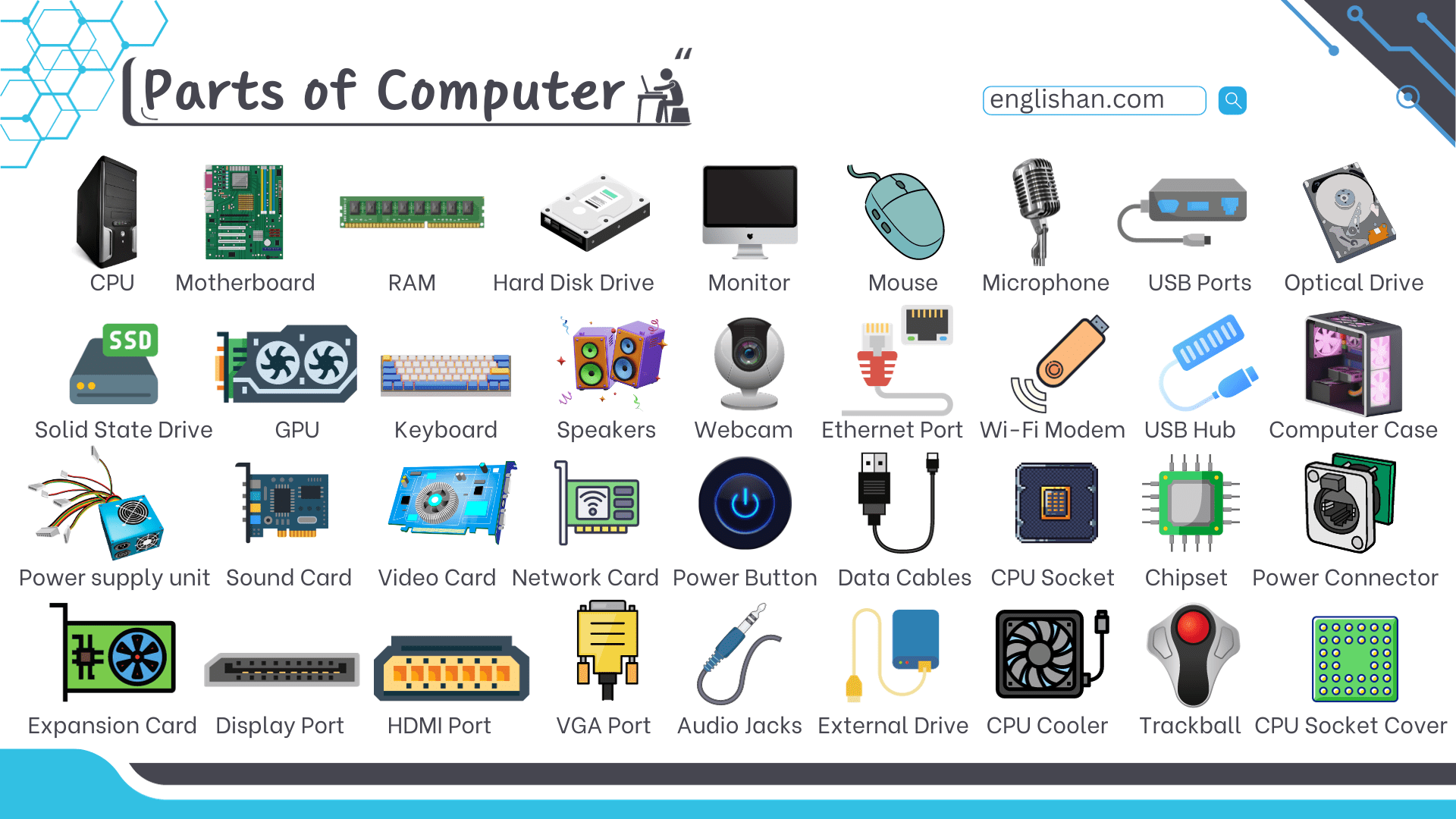
Computer parts fall into two groups: the hardware sealed inside the case and the devices you connect to it. If you want to learn all the important Computer Parts Names, start by understanding each component. Inside, the processor, memory, storage, graphics, power, and cooling hardware do the technical work. Outside, the monitor, keyboard, mouse, speakers, and printer let you type, point, listen, and see results. Naming each part on sight, and knowing what it does, turns “the box won’t start” into “the power supply failed” and “the screen is black” into “the graphics card or the cable.”
Computer Parts Names With Pictures
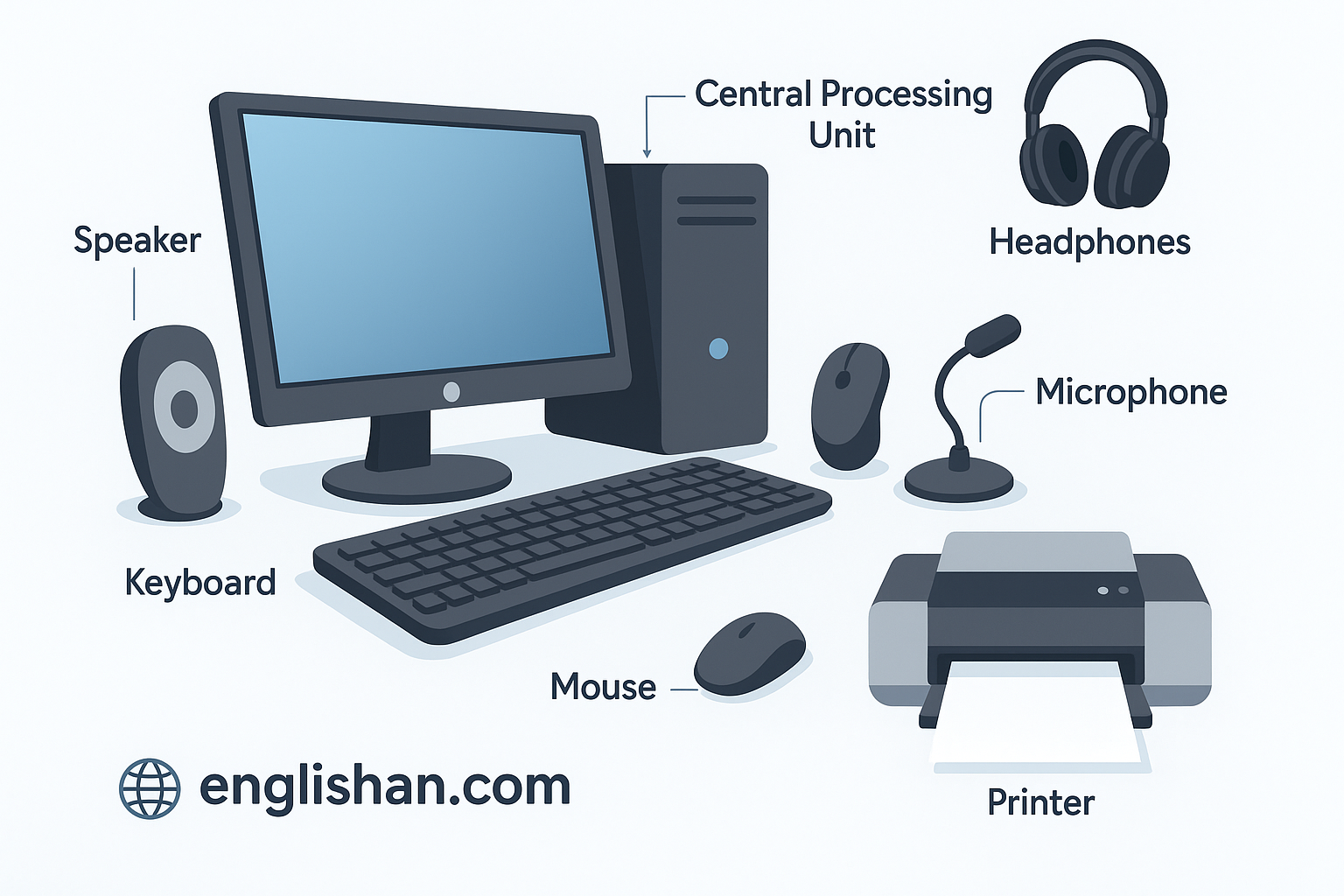
Computer parts are the physical hardware that make up a computer: internal components such as the CPU, motherboard, RAM, and storage drives inside the case, plus external devices such as the monitor, keyboard, and mouse connected to it. Ports and connectors carry the electrical, data, audio, video, and network links between them.
Three distinctions trip up most people, and getting them right is what separates naming a part from understanding it.
The system unit is the desktop enclosure together with the hardware installed inside it. The CPU is one component inside that enclosure, not another name for the whole box.
The system unit is the CPU. ❌ The system unit contains the CPU. ✅
The same logic applies twice more. A graphics card is the full expansion card; the GPU is the processor mounted on it. A port is the connection point built into a device; the connector is the plug you insert into that port.
20 Computer Parts Names and Functions
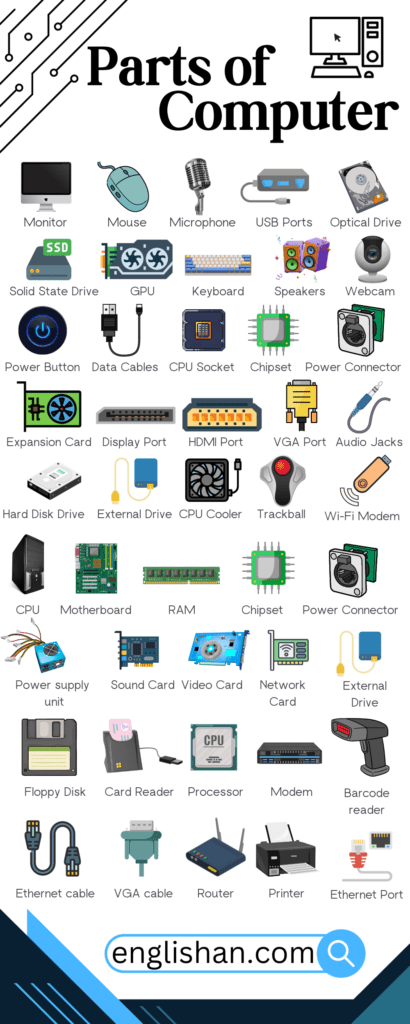
Most people meet these twenty parts first, at school, at work, or the moment a desktop or laptop needs fixing.
| Computer Part | Main Function |
|---|---|
| CPU | Runs program instructions and performs calculations. |
| Motherboard | Connects the processor, memory, storage, ports, and expansion hardware. |
| RAM | Holds active data temporarily for fast access. |
| SSD | Stores files on flash memory with rapid read and write speeds. |
| Hard Drive | Stores files on magnetic disks and offers high capacity per dollar. |
| Graphics Card | Processes images, video, games, and 3D graphics. |
| Power Supply Unit | Converts wall electricity into regulated power for internal parts. |
| Computer Case | Houses and protects the main desktop hardware. |
| CPU Cooler | Draws heat away from the processor. |
| Monitor | Displays text, images, video, and software screens. |
| Keyboard | Enters letters, numbers, symbols, and commands. |
| Mouse | Moves the pointer and selects items on screen. |
| Speakers | Play sound from programs, calls, music, and video. |
| Microphone | Records voice and other sound. |
| Webcam | Captures video for calls, lessons, recording, and streaming. |
| Printer | Produces paper copies of documents and images. |
| USB Flash Drive | Stores and transfers files in a pocket-sized device. |
| USB Port | Connects peripherals and, on many ports, supplies power. |
| HDMI Port | Sends digital video and audio to a display. |
| Ethernet Port | Links the computer to a wired network. |
Internal Computer Parts Names
Internal computer parts sit inside a desktop case or laptop chassis. Some do general processing; others specialize in memory, storage, graphics, networking, power conversion, or temperature control. Desktops use standardized replaceable parts, while laptops use smaller hardware, and manufacturers solder some of it straight to the motherboard.

Processor, Motherboard, and Memory Parts
CPU (Central Processing Unit)
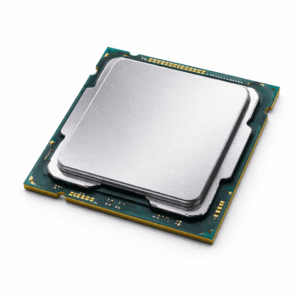
Runs instructions from the operating system and software and performs the calculations behind every task. Core count, architecture, clock speed, cache, and power limits shape its speed, though no single figure describes every workload. A processor built for office work has different demands from one chosen for gaming, video production, engineering, or scientific computing.
Motherboard
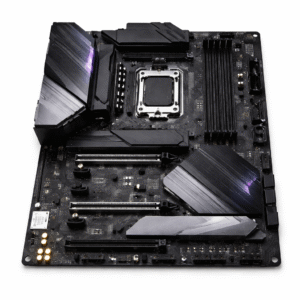
The main circuit board. It carries the processor socket, memory slots, storage connections, expansion slots, firmware, power connectors, and the external ports on the back. Board size and chipset decide which processors, memory types, storage devices, and expansion cards fit.
RAM (Random Access Memory)
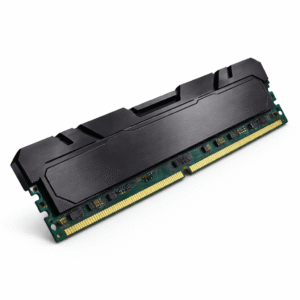
Holds the data and instructions that running programs need right now. It is temporary memory, so its contents vanish the moment power is lost. Adding RAM improves multitasking when the current amount runs short, but more memory does not raise every kind of performance.
ROM (Read-Only Memory)
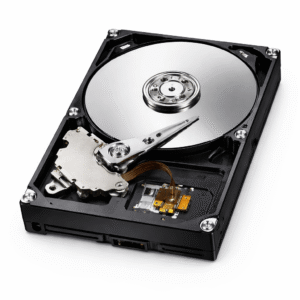
Stores firmware that the computer reads at startup, before the operating system loads. Unlike RAM, ROM keeps its contents without power, which is why the machine knows how to begin booting the instant you press the power button.
BIOS and UEFI Chip
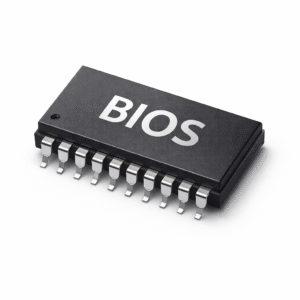
A firmware chip on the motherboard that initializes the hardware during boot and hands control to the operating system. Older boards use BIOS; newer boards use UEFI, which adds faster startup, larger-drive support, and secure boot.
Graphics Card
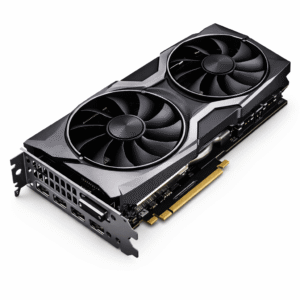
Processes visual data for monitors, games, 3D software, and video editing. A discrete card carries a GPU, video memory, power circuitry, cooling, and display outputs. Integrated graphics live on the CPU instead and share system memory.
Sound Card
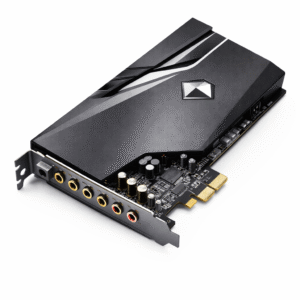
Processes audio for speakers, headphones, microphones, and recording gear. Most motherboards include built-in audio, so a dedicated sound card now serves recording, higher-quality conversion, or extra audio connections.
Network Interface Card: Links the computer to a local network. A wired adapter uses Ethernet; a wireless adapter uses Wi-Fi. Many motherboards build in both, though add-in cards still exist for faster standards, replacement, or more connections.
Wi-Fi Card: Provides wireless network access. Desktops use a PCI Express slot; laptops use a compact internal module wired to small antenna cables. Frequency bands and top speed depend on the card and the router it connects to.
CMOS Battery
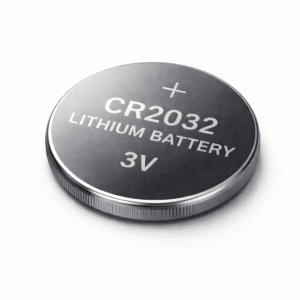
A coin-cell battery that powers the real-time clock and preserves firmware settings while the computer is unplugged. A drained battery resets the system clock and firmware configuration.
Storage and Power Components
Hard Disk Drive (HDD): Stores data on rotating magnetic platters. It offers more capacity per dollar than an SSD, which suits large archives, media libraries, surveillance footage, and secondary storage. The moving parts raise access time and make it more fragile under shock while running.
Solid State Drive (SSD)
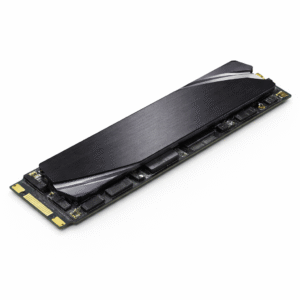
Stores data on flash memory with no moving parts. It boots the operating system, opens applications, and moves files faster than a hard drive. Formats range from 2.5-inch SATA drives to M.2 modules that run on SATA or PCI Express.
Optical Drive: Reads or writes CDs, DVDs, or Blu-ray discs. Many new computers drop it, though it still serves disc-based media, older software, and physical archives.
Power Supply Unit (PSU)
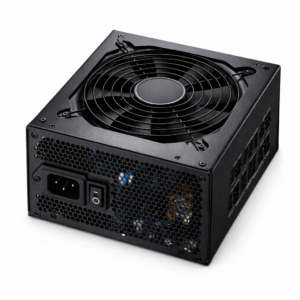
Converts alternating current from the wall into the regulated direct-current voltages the motherboard, processor, storage, graphics card, and fans need. Its wattage must match the system’s draw, and its connectors must match the installed hardware.
SATA Port: Connects hard drives, 2.5-inch SSDs, and optical drives to the motherboard for data transfer. A separate cable from the power supply supplies the device its power.
M.2 Slot: Accepts compact modules, including certain SSDs and wireless cards. Fit depends on the slot key, module length, and electrical interface, so two devices in the same M.2 shape may still use different connections.
Storage Drive Bay: A mounting position inside the case. A 3.5-inch bay takes a hard drive, a 2.5-inch mount takes a SATA SSD or small hard drive, and older cases add 5.25-inch bays for optical drives.
Cooling and Expansion Hardware
CPU Cooler: Moves heat off the processor onto a larger surface. Air coolers pair a heat sink with a fan. Closed-loop liquid coolers combine a cold plate, pump, tubing, radiator, and fans into one sealed unit.
Case Fan: Pushes air through the enclosure. Intake fans pull cooler air in; exhaust fans force warmer air out. Fan size, speed, placement, and airflow blockage decide temperature and noise.
Heat Sink: A finned metal block that spreads heat into the surrounding air. Processors, graphics cards, voltage-regulation hardware, chipsets, and some M.2 SSDs rely on one.
Expansion Slot: A motherboard connection for an add-in card. PCI Express slots take graphics cards, network adapters, sound cards, capture cards, and storage controllers. Slot length and data lanes differ across boards.
Computer Case: Houses the desktop motherboard, power supply, storage, cooling, and expansion cards. Its dimensions set motherboard compatibility, graphics-card clearance, cooler height, radiator positions, fan mounts, and drive capacity.
External Computer Parts Names
External computer parts connect outside the desktop case or form part of the laptop shell. Some feed information into the computer; others present its output. Storage accessories, docks, and power-protection gear add functions without becoming permanent internal hardware.
Input Devices

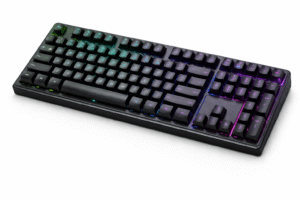
Keyboard
Related: Parts of Keyboard
Enters text, numbers, symbols, shortcuts, and commands. Desktop keyboards use USB, Bluetooth, or a wireless receiver. Laptop keyboards build into the upper chassis with function keys for brightness, volume, and device controls.
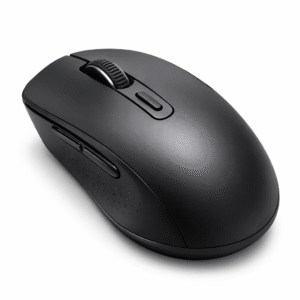
Mouse
Related: Parts of a Computer Mouse
Moves the pointer through physical motion, buttons, and a scroll wheel. An optical sensor tracks movement across a surface. Wireless models use Bluetooth or a small USB receiver; wired models draw power and data through the cable.
Microphone
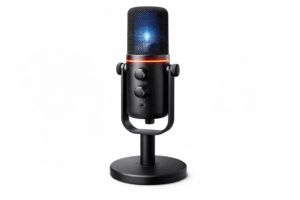
Converts sound into an electrical or digital signal for calls, recordings, speech recognition, and streaming. A computer might use a built-in mic, a headset mic, an audio-jack model, or a USB microphone with its own conversion hardware.
Webcam: Captures video for meetings, lessons, recording, and streaming. Laptop webcams sit in the display frame; desktop webcams clip to the top of a monitor and connect over USB.
Scanner: Converts printed documents, photos, and artwork into digital images. Flatbed scanners suit photographs and bound material; sheet-fed models run through loose pages faster.
Touchpad: A touch-sensitive pointing surface built into most laptops. Finger movement drives the pointer, and gestures scroll, zoom, and switch between apps.
Game Controller: Supplies buttons, triggers, directional pads, and analog sticks for compatible games. Gamepads, joysticks, steering wheels, and flight controllers each suit different genres.
Graphics Tablet: Reads a stylus position and pressure for illustration, handwriting, photo editing, and design. Some models use a separate drawing surface; pen displays put a screen under the drawing area.
Output Devices
Monitor
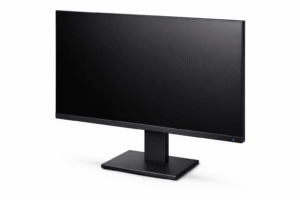
Displays text, images, video, and software screens. Resolution sets the number of pixels shown, while refresh rate sets how often the panel updates. Size, panel type, brightness, color accuracy, response time, and ports decide its fit for office work, gaming, design, or media.
Related: Parts of Computer Monitor
Speakers
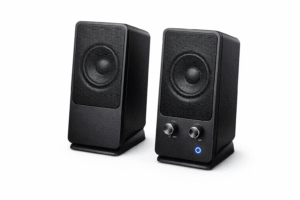
Turn audio signals into sound. They connect through a 3.5 mm jack, USB, Bluetooth, an audio interface, or a monitor with built-in speakers.
Related: Parts of Speakers
Headphones: Deliver private audio for calls, games, music, and video. A headset adds a microphone. Connections include a 3.5 mm plug, USB, Bluetooth, and a dedicated wireless receiver.
Printer: Produces physical copies of documents and images. Inkjet printers use liquid ink and suit mixed document and photo work; laser printers use toner and suit heavy text printing. Multifunction models scan and copy too.
Projector: Casts the computer image onto a wall or screen. Classrooms, meeting rooms, events, and home theaters use projectors, with HDMI, DisplayPort through an adapter, USB-C, or wireless display as connection options.
Storage and Connection Accessories
External Hard Drive: Adds storage in a separate enclosure, usually over USB. It suits backups, archives, project files, and large media collections.
USB Flash Drive: A pocket-sized flash-memory device that moves documents, photos, installers, and presentations between computers.
Memory Card: Stores data in cameras, phones, audio recorders, and handheld devices. Common formats include SD, microSD, and CompactFlash.
USB Hub: Adds more USB connections to a computer. A powered hub runs off its own adapter, the better choice when several devices draw more current than one port supplies.
Docking Station: Links a laptop to monitors, storage, networking, audio, USB devices, and power through one main connection. Available functions depend on the dock, cable, laptop port, and operating system.
Uninterruptible Power Supply (UPS): Supplies battery power when the mains fails, giving you time to save work and shut down properly. Better models also steady voltage and filter electrical noise.
Card Reader: Reads removable memory cards. It builds into a laptop, monitor, or desktop case, or connects as an external USB device.
Computer Ports and Connectors
A port is the connection point on a computer or peripheral; a connector is the plug on the cable or device. Shape alone does not confirm every feature, especially with USB-C, where data speed, charging, and video output all depend on the hardware behind the port.
USB-A Port: The familiar rectangular connection for keyboards, mice, flash drives, printers, and hubs. Speed and power follow the USB version that both connected devices support.
USB-C Port: A small reversible connector that carries data, charging, video, or several of those at once. The device specification confirms which features a given port includes.
HDMI Port: Sends digital video and audio to a monitor, television, projector, capture device, or receiver. Resolution and refresh rate depend on the hardware, the cable, and the HDMI version.
DisplayPort: A digital video and audio connection found on desktop graphics cards, monitors, docks, and professional displays. It also travels through Mini DisplayPort and select USB-C ports.
Ethernet Port: Takes an RJ45 connector for a wired network link. Desktops, docks, routers, switches, and network storage use it wherever a stable connection matters.
Audio Jack: A 3.5 mm connection for headphones, speakers, microphones, or combined headsets. Desktops split it into separate output, mic input, and surround channels.
SD Card Slot: Accepts Secure Digital memory cards. Cameras and some computers take full-size SD cards, while microSD cards need a matching slot or adapter.
Power Connector: Receives electricity from an adapter, cable, or power supply. Desktops use an AC connection on the PSU; laptops use a barrel connector, USB-C charging, or a maker-specific design.
Thunderbolt Port: Uses the USB-C connector shape, though not every USB-C port includes Thunderbolt. The Thunderbolt symbol and the device specification confirm it. A true Thunderbolt link carries high-speed data, display output, docking, and power.
VGA Port: An older analog video connection with a 15-pin plug. It sends video without digital audio and remains on legacy monitors, projectors, and computers.
Desktop vs Laptop Computer Parts
Desktops and laptops do the same core work, but their parts differ in size, layout, power draw, cooling, and how much you can upgrade. A desktop uses larger standardized parts and separate external devices. A laptop builds the screen, keyboard, touchpad, battery, speakers, webcam, microphone, and system hardware into one shell.
| Component | Desktop Computer | Laptop Computer |
|---|---|---|
| Display | Separate monitor | Built-in screen |
| Keyboard and pointer | Separate keyboard and mouse | Built-in keyboard and touchpad |
| Memory | Full-size DIMM modules | SODIMM modules or soldered memory |
| Graphics | Integrated or replaceable graphics card | Integrated or compact mobile GPU |
| Power | Internal PSU wired to the wall | Rechargeable battery and external charger |
| Cooling | Larger heat sinks and several fans | Compact heat pipes and blower fans |
| Expansion | Several internal slots and drive mounts | Limited internal expansion |
| Upgrades | Most parts are replaceable | Upgrade access depends on the model |
Related: Names of Parts of Laptop
Desktops let you swap the graphics card, power supply, storage, memory, processor, cooler, and case fans. Laptops vary widely: some allow storage and memory upgrades, while others solder the memory and seal off internal access.
Computer Parts Names A to Z
The alphabetical index gathers every part named above.
| Letter | Computer Parts Names |
|---|---|
| A | Audio Jack |
| B | BIOS and UEFI Chip |
| C | Card Reader, Case Fan, CMOS Battery, Computer Case, CPU, CPU Cooler |
| D | DisplayPort, Docking Station |
| E | Ethernet Port, Expansion Slot, External Hard Drive |
| G | Game Controller, Graphics Card, Graphics Tablet |
| H | Hard Disk Drive, HDMI Port, Headphones, Heat Sink |
| K | Keyboard |
| M | M.2 Slot, Memory Card, Microphone, Monitor, Motherboard, Mouse |
| N | Network Interface Card |
| O | Optical Drive |
| P | Power Connector, Power Supply Unit, Printer, Projector |
| R | RAM, ROM |
| S | SATA Port, Scanner, SD Card Slot, Solid State Drive, Sound Card, Speakers, Storage Drive Bay |
| T | Thunderbolt Port, Touchpad |
| U | Uninterruptible Power Supply, USB-A Port, USB-C Port, USB Flash Drive, USB Hub |
| V | VGA Port |
| W | Webcam, Wi-Fi Card |
Label the Computer Parts Names
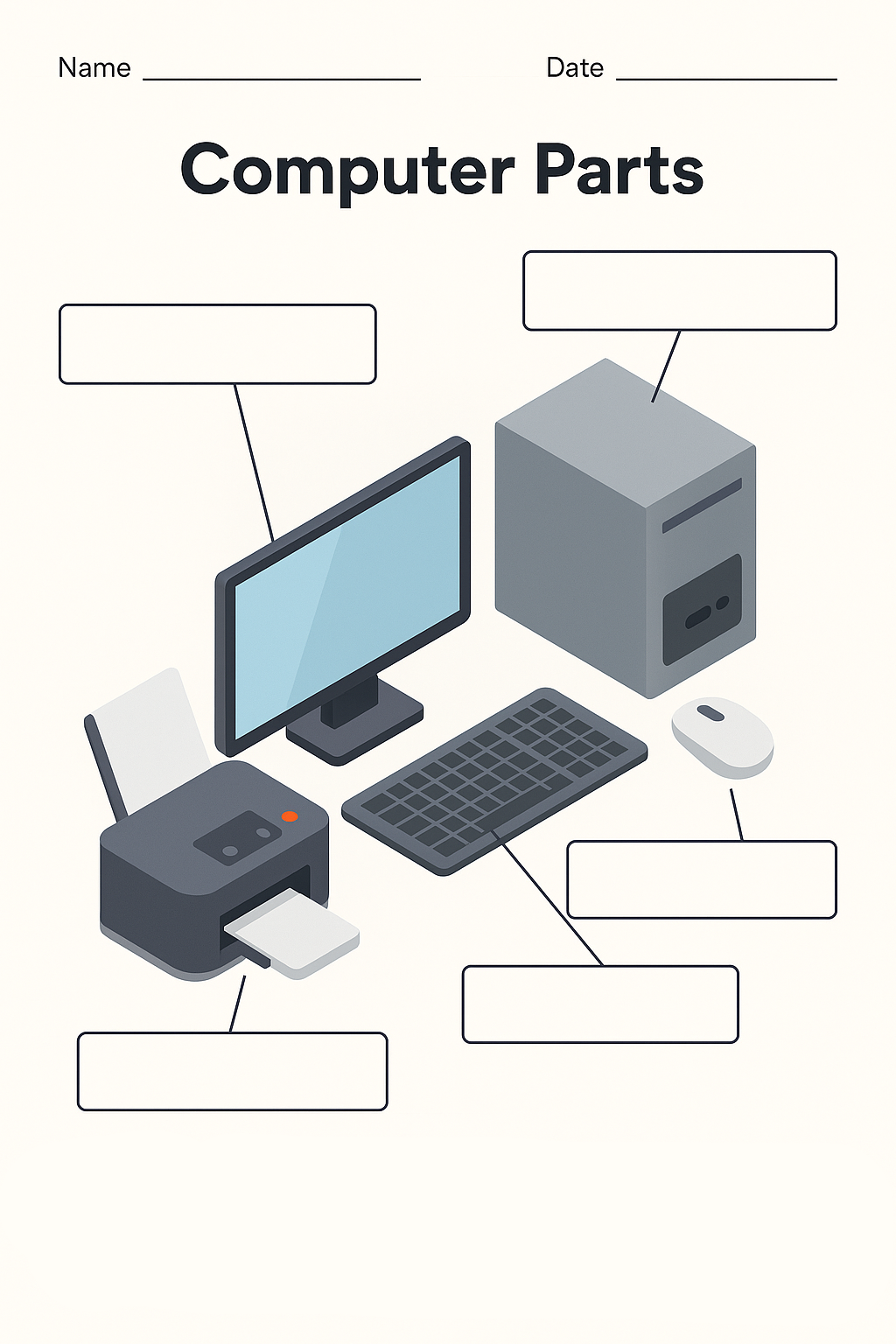
A basic desktop worksheet usually shows a monitor, system unit, keyboard, mouse, and printer. Identify each object by its shape, then confirm it by its job.
- Monitor: Displays visual output.
- System unit: Houses the main desktop hardware.
- Keyboard: Enters text and commands.
- Mouse: Moves the pointer.
- Printer: Produces paper copies.
Do not label the processor as the whole computer box. The processor sits inside the system unit and does not appear in an external desktop drawing.
FAQs
It depends on the grouping. A common desktop setup includes the system unit, monitor, keyboard, and mouse. The main internal parts are the CPU, motherboard, RAM, a storage drive, the power supply, and cooling hardware.
The seven usually listed are input devices, output devices, the CPU, memory, storage, the motherboard, and the power supply. Some sources swap in the graphics card or a network interface to reach eight, which is why the count shifts between sources.
RAM is temporary working memory that holds data only while programs run and loses everything at power off. Storage, an SSD or hard drive, keeps files, software, and the operating system saved even when the computer is off.
The physical parts are called hardware. Hardware covers internal components, external devices, ports, cables, and removable storage.
A desktop holds a motherboard, CPU, RAM, an SSD or hard drive, a power supply, cooling hardware, and optional expansion cards. The exact mix depends on the model and its intended workload.
The box is the system unit, computer case, or tower. It holds the motherboard, processor, memory, storage, power supply, cooling, and expansion cards.
One teaching model uses the CPU, memory, storage, input devices, and output devices. Another names the system unit, monitor, keyboard, mouse, and printer. The count changes because each model groups the hardware differently.
Internal parts sit inside the desktop case or laptop chassis. External parts connect outside the enclosure or form part of the laptop shell. The CPU and RAM are internal; the monitor, keyboard, and mouse are external.
Each source uses a different teaching model. A three-part model uses processing, memory, and storage. A four-part desktop model uses the system unit, monitor, keyboard, and mouse. A five-part model adds input and output to processing, memory, and storage.
You May Also Like