
A computer mouse is a core input device, even though most of its working parts stay hidden beneath the shell. When you talk about clicking, scrolling, pointer movement, or cursor control, weak wording often appears because the internal hardware names are missing or mixed up.
In this article, we break down the parts of a computer mouse with focus on everyday computing use. The coverage includes items such as the left and right buttons, scroll wheel, optical or laser sensor, side buttons, DPI button, and cable or wireless receiver, while noting design differences across models. The labeled diagram below helps match each name to its exact position.
List of Computer Mouse Parts
- Left Button
- Right Button
- Scroll Wheel
- Middle Button
- Side Buttons
- Mouse Shell
- Top Cover
- Bottom Cover
- Grip Surface
- USB Cable
- USB Plug
- USB Receiver
- Power Switch
- Battery Compartment
- Battery Cover
- Click Switch
- Sensor
- Optical Sensor
- Laser Sensor
- Lens
- Scroll Wheel Encoder
- Wheel Axle
- Printed Circuit Board
- Microcontroller
- LED Light
- Feet Pads
- Glide Pads
Computer Mouse Parts Diagram With Names
A computer mouse is a hand-operated input device that converts physical movement and finger actions into digital commands. Each component contributes to click response, scroll control, tracking accuracy, or signal transmission. Knowing these parts by name helps connect the physical device with how pointer movement and commands are generated during everyday computer use.
What Is A Computer Mouse?
A computer mouse is a pointing device used to move the cursor, select items, and perform actions on a computer interface. Motion across a surface is detected by an internal sensor, while buttons and the scroll wheel generate command inputs that are sent to the system in real time.
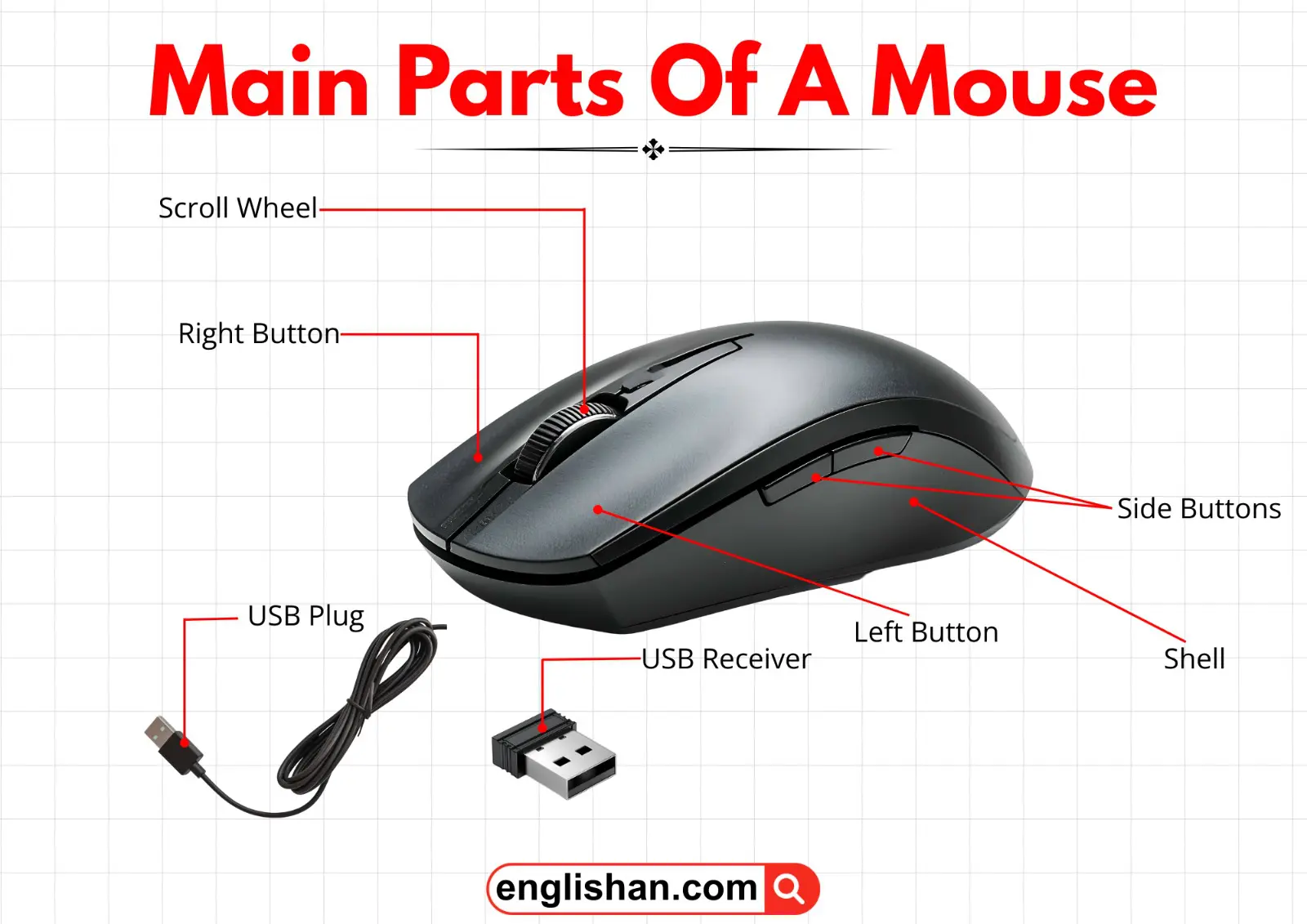
Main Parts Of A Mouse
The main parts are the external components that handle direct user input. These parts manage clicking, scrolling, and grip, and they shape the overall handling and response of the mouse.
Left Button
The left button functions as the primary command input. It works through an internal click switch that responds to repeated presses with consistent force and feedback. Common actions performed through this control include:
- Selecting icons and text
- Opening files and programs
- Dragging and dropping items
The button forms part of the upper shell and is operated by the index finger during normal use.
Right Button
The right button provides secondary command input. It triggers contextual actions defined by the operating system or software. Typical functions include:
- Opening shortcut menus
- Accessing extended options
This button is integrated into the top shell alongside the left button.
Scroll Wheel
The scroll wheel adds directional navigation without requiring pointer dragging. Rotation is detected in steps and translated into vertical movement on the screen. In many designs, the wheel also supports a press action.
The wheel assembly is aligned between the primary buttons.
Side Buttons
Side buttons extend control by allowing quick access to navigation or shortcut commands. They reduce the need for keyboard input during browsing or workflow tasks. Common uses include:
- Page navigation
- Custom command assignment
These buttons are built into the side surface of the shell, typically aligned with thumb movement.
Shell
The shell forms the outer enclosure of the mouse. It protects internal electronics and defines grip shape, hand posture, and surface contact. Texture and contour influence comfort during extended use.
All internal components are enclosed within this outer body.
USB Plug
The USB plug enables a wired electrical and data connection between the mouse and the computer. It supplies power and transmits input signals continuously.
This connector terminates the cable in wired mouse designs.
USB Receiver
The USB receiver handles wireless signal reception from the mouse. It converts transmitted radio signals into usable input data for the computer.
It functions as an external interface inserted into a USB port.
Internal Parts Of A Mouse
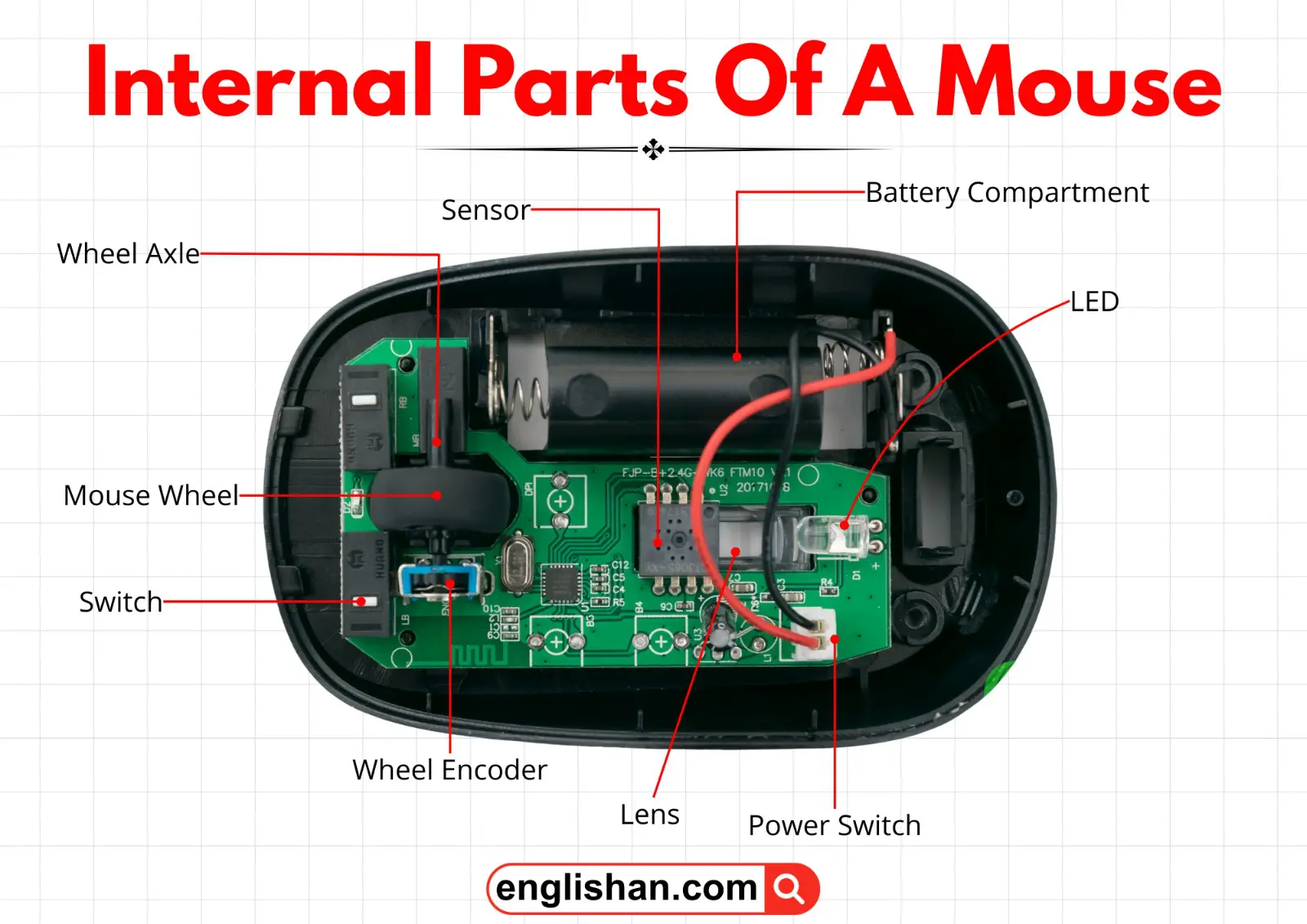
Internal parts handle sensing, switching, and signal processing. These components operate together to translate physical actions into digital input without direct user contact.
Switch
Switches register button presses by completing an electrical circuit. Each actuation generates a click signal that is interpreted as a command by the system.
These switches are mounted beneath the button surfaces.
Sensor
The sensor tracks movement by reading surface detail using optical or laser technology. Rapid image sampling allows accurate calculation of direction and speed. Tracking quality depends on sensor resolution and surface compatibility.
The sensing unit operates through the base opening of the mouse.
Lens
The lens focuses reflected light from the surface onto the sensor. Proper alignment ensures consistent tracking and prevents cursor jitter.
It is fixed directly above the sensor module.
Wheel Encoder
The wheel encoder detects rotation of the scroll wheel and converts mechanical movement into digital scroll steps. Each increment corresponds to controlled on-screen movement.
This component is mechanically linked to the scroll wheel assembly.
Wheel Axle
The wheel axle supports rotation of the scroll wheel while maintaining alignment with the encoder. It ensures smooth movement and consistent scroll response.
The axle passes through the center of the wheel hub.
Battery Compartment
The battery compartment stores power cells used by wireless mice. Its design allows quick access for replacement while maintaining electrical contact.
Access is provided through a removable panel on the lower housing.
Power Switch
The power switch controls electrical flow to the mouse electronics. Disabling power prevents battery drain when the device is not in use.
This control is integrated into the lower housing.
Types Of Computer Mouse
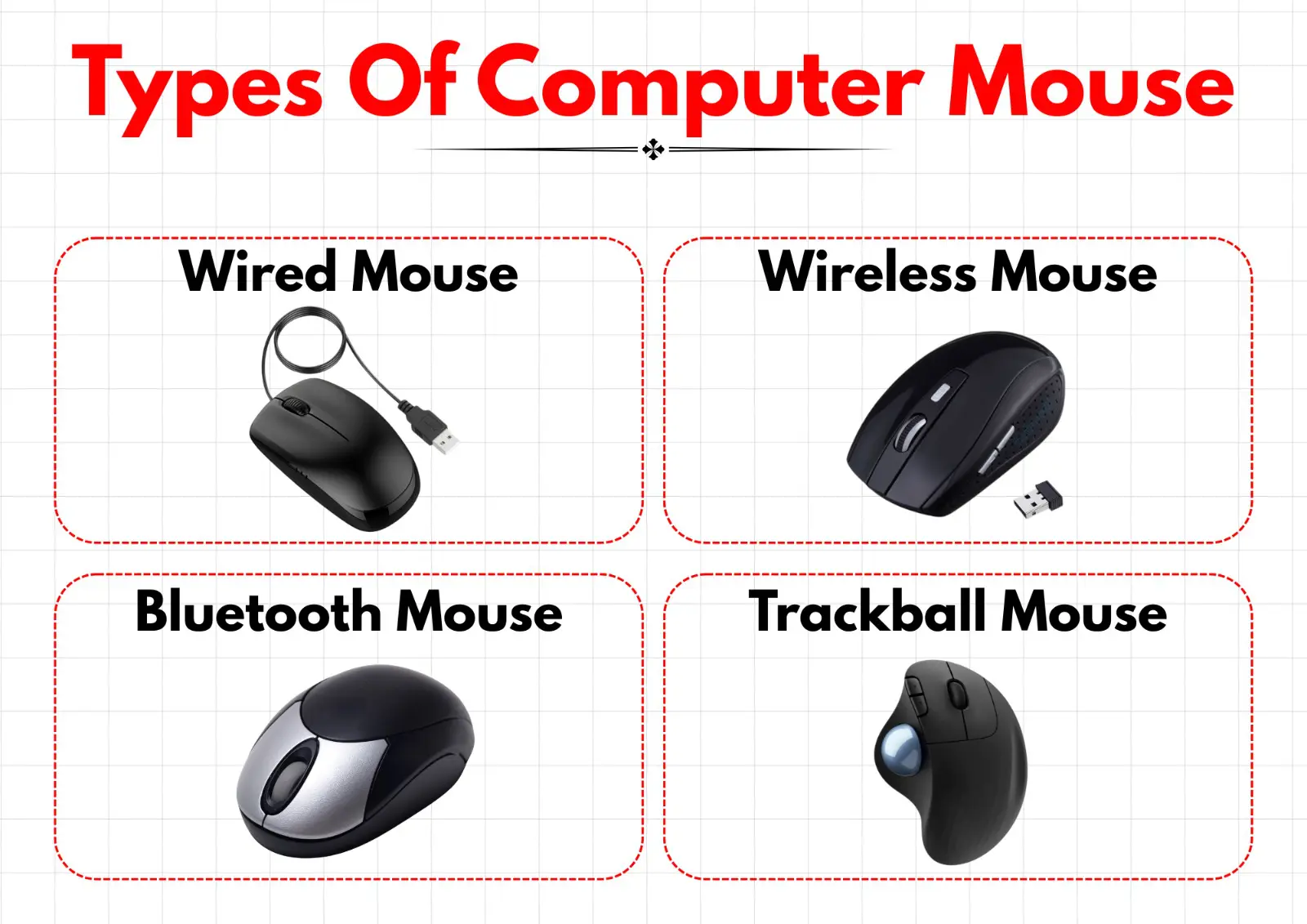
Mouse types differ by connection method and control design, while retaining the same fundamental internal components.
Wired Mouse
A wired mouse transmits input signals through a physical cable and draws power directly from the computer, providing uninterrupted operation.
Wireless Mouse
A wireless mouse communicates using radio frequency signals and relies on battery power for operation.
Bluetooth Mouse
A Bluetooth mouse pairs directly with a computer through Bluetooth connectivity, eliminating the need for a separate receiver.
Trackball Mouse
A trackball mouse controls cursor movement using a rolling ball while the device body remains stationary.
How The Mouse Works?
Mouse operation depends on coordinated mechanical input and electronic processing.
Click Switch
When a button is pressed, the click switch actuates and sends a command signal to the system, registering a click action.
Scroll Encoder
Rotation of the scroll wheel is measured by the encoder, which converts motion into proportional scrolling output.
Sensor Tracking
The sensor continuously analyzes surface movement and converts physical motion into cursor movement displayed on the screen.
Computer Mouse Key Takeaways
A computer mouse operates as an input system where external controls capture hand actions, internal switches register commands, and the sensor tracks movement across a surface. Scroll mechanisms manage navigation, while wired or wireless connections transmit signals to the computer. Power is supplied through a cable or batteries, and internal components convert physical motion into precise on-screen control. Some variation exists in design, but all mouse parts function together to enable accurate pointing and selection.
You May Also Like